How to Create a Google Review QR Code (and Where to Put It)
By EasyReviews TeamLast updated 6 min read
A Google review QR code lets customers open your review form by pointing their phone camera at a sign, a receipt or a business card. No typing, no searching for your business, no landing on the wrong listing. It is one of the simplest ways to collect reviews from customers who are standing right in front of you.
This guide shows how to create one for free in three steps, where to put it, how big to print it, what to write next to it, and the mistakes that quietly stop QR codes from working.
What a Google review QR code does
It is a regular QR code that contains your Google review link. When a customer scans it, their phone opens the review window for your business, either in the browser or in the Google Maps app. They pick a star rating, write a few words and post. They need to be signed in to a Google account to publish the review.
There are two kinds of QR codes, and the difference matters more than most generators admit:
| Static QR code | Dynamic QR code | |
|---|---|---|
| How it works | Contains your review link directly | Contains a short link that redirects to your review link |
| Cost | Free with most generators | Usually a subscription |
| Can it stop working? | Only if your review link changes | Yes, if the subscription or free trial ends, or the service shuts down |
| Scan tracking | No | Yes, scan counts in the provider's dashboard |
| Change the destination later | No, you reprint | Yes |
Your review link rarely changes, so a static code is the safer default. Choose dynamic only if you really need scan statistics and are prepared to keep paying for them.
How to create a Google review QR code in 3 steps
- 1
Get your Google review link
Search for your business name on Google while signed in with the account that manages your Business Profile. In the profile panel, choose Ask for reviews (sometimes found under "Read reviews") and copy the link. It usually looks like g.page/r/…/review. Alternative: look up your Place ID with Google's Place ID Finder and use search.google.com/local/writereview?placeid= followed by your Place ID.
- 2
Turn the link into a QR code
Paste the link into a QR code generator and choose a static code. Download a PNG for screens and a vector file (SVG or PDF) for print, so the code stays sharp at any size.
- 3
Test it before you print
Scan the code with an iPhone and an Android phone. Check that it opens the review form for the right business, not just your Maps listing, and try it once while signed out of Google to see what customers without a session will see.
Where to put your QR code
Place the code where customers naturally pause after the service is done, with their phone in hand and a minute to spare.
| Placement | Works well for | Tip |
|---|---|---|
| Counter or checkout sign | Retail, salons, auto shops | Next to the payment terminal, at eye level |
| Table tents | Restaurants, cafés, bars | Pair it with the check presenter rather than the menu |
| Receipts and invoices | Any business | Add one line of text above the code |
| Business or thank-you cards | Contractors, home services, real estate | Hand it over when the job is finished |
| Checkout desk | Dental, medical, veterinary practices | Patients are done with the visit and waiting to pay |
| Order bags and packaging | Bakeries, takeout, local pickup | An insert with the code and a thank-you note |
Print size and design tips
- Size for the distance. About 1 inch (2.5 cm) wide is a reasonable minimum for cards and receipts scanned up close. For signs, a common rule of thumb is a code width of about one-tenth of the scanning distance: around 3 inches for a sign read from 30 inches away.
- Keep strong contrast. A dark code on a light background scans best. Avoid light-on-dark, pastel codes and busy background images.
- Leave a blank margin. The QR standard calls for an empty border around the code (four modules wide). Do not let text or borders touch it.
- Go easy on logos. A small logo in the center usually still scans thanks to error correction, but test every version.
- Avoid glare. Glossy lamination can reflect overhead lights and block the camera. Matte finishes scan more reliably.
- Always add a line of text. A bare QR code gets ignored. Tell people what happens when they scan it.
What to write next to your QR code
Keep the message short, neutral and addressed to every customer. Copy one of these and adapt it:
How did we do? Scan to leave us a Google review. It takes about a minute. Thank you!
Tell us how we did. Point your phone camera here to review us on Google. Thank you for supporting a local restaurant!
Thanks for choosing {Business}! Scan to share your honest feedback on Google.
Scan to review {Business} on Google. Your feedback helps neighbors find a business they can trust.
Common mistakes that make QR codes fail
- Linking to the wrong place: your homepage or Maps listing instead of the review form.
- Using a free dynamic code that stops working when the trial ends, after you have printed 500 cards.
- Printing too small or in low contrast, so phones cannot read it from where customers stand.
- Adding a "rate us first" page that only sends 4- and 5-star customers to Google. That is review gating, which Google prohibits.
- Offering a reward for scanning and reviewing, such as a free drink. Incentives for reviews are against Google's policy.
- Asking customers to review on a device at your location. Several reviews from the same device and place can be filtered as suspicious. Customers should use their own phones.
Combine your QR code with a direct ask
A QR code is passive: it works much better when someone points to it. A simple "There's a QR code by the register if you'd like to leave us a Google review" at checkout turns a sign into a request. Our guide on how to ask for Google reviews has scripts that feel natural.
QR codes reach customers on site; texts and emails reach the ones who left. For the full mix of methods, see how to get Google reviews. And once reviews start arriving, reply to each one: it shows future customers that their feedback is read.
How EasyReviews helps
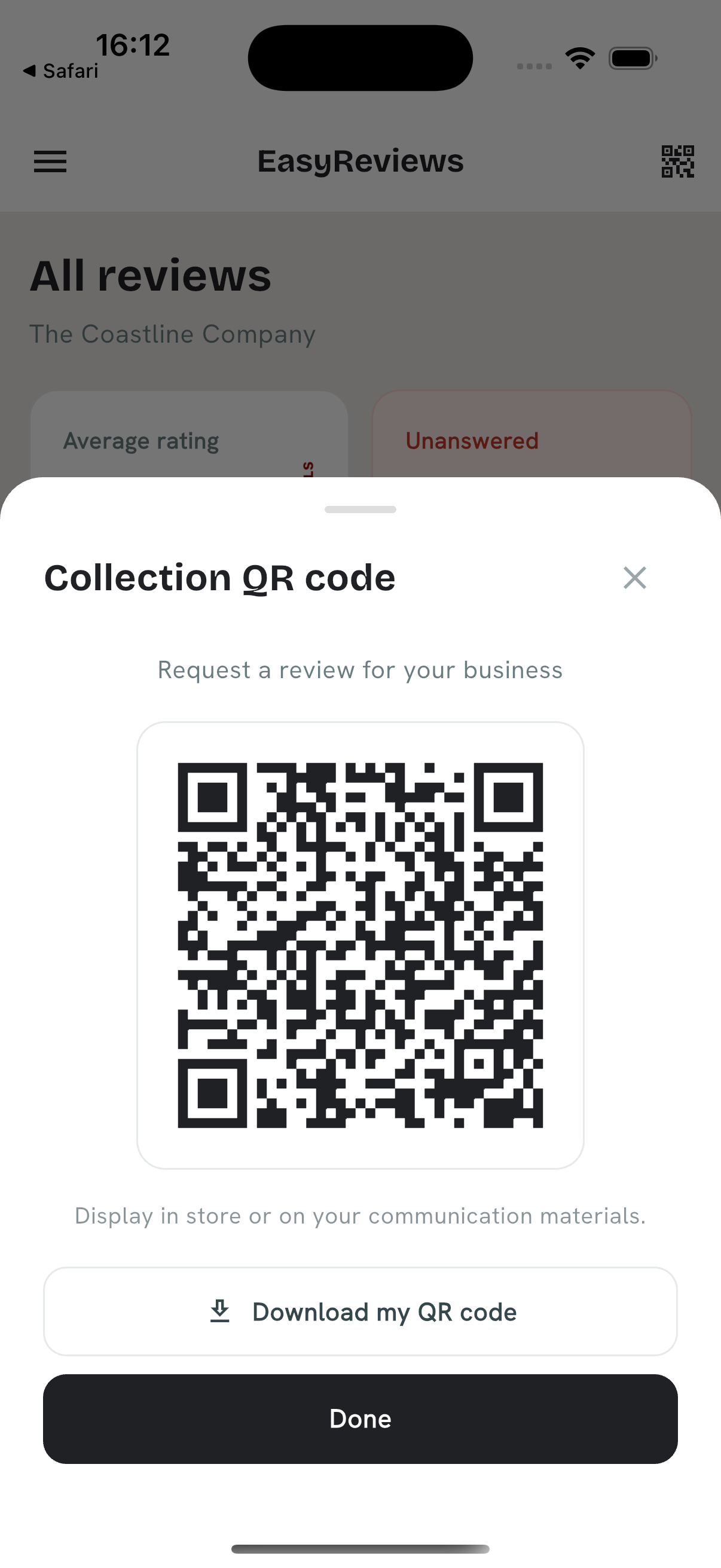
In EasyReviews, your review QR code is generated from your connected Google Business Profile, so it always points to the right review form. Download it from the app and print it for your counter, cards or invoices. For customers who have already left, send the same link by text in a couple of taps. See plans and pricing.
Try EasyReviews free
7 SMS review requests and 7 AI-drafted replies, no credit card required.
Get started freeFrequently asked questions
How do I get a QR code for Google reviews?
Copy your review link from your Google Business Profile ("Ask for reviews"), paste it into a QR code generator, choose a static code, and download it. Test it on a couple of phones before printing.
Is a Google review QR code free?
Yes. A static QR code that contains your review link can be created for free and keeps working as long as the link is valid. Paid dynamic codes add scan tracking but stop working if you stop paying.
Does a Google review QR code expire?
A static code does not expire. A dynamic code depends on the service that hosts the redirect: if the trial ends, the subscription lapses or the company shuts down, the printed code stops working.
Do customers need a Google account to leave a review?
Yes. Customers need to be signed in to a Google account to post a review. Many people already are on their phone; the others are asked to sign in before posting.
Can I track how many reviews come from my QR code?
Not directly. A dynamic QR code counts scans, but Google does not tell you which reviews came from a scan. Compare your review count before and after you put the code in place.